Disable a User Account
If you need to temporarily prevent someone from registering for programs while still allowing them to access their account, you can disable their account through their security role.
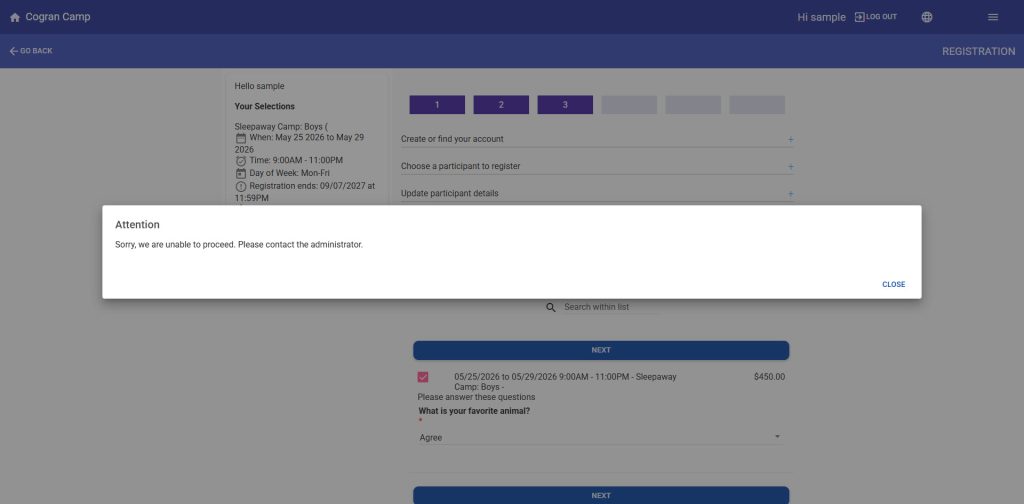
When an account is disabled, the person can still log in, browse programs, and make payments. However, if they attempt to register for a program, they will see a message instructing them to contact the office. This allows staff to address the situation directly.
Steps
How to Disable the Account
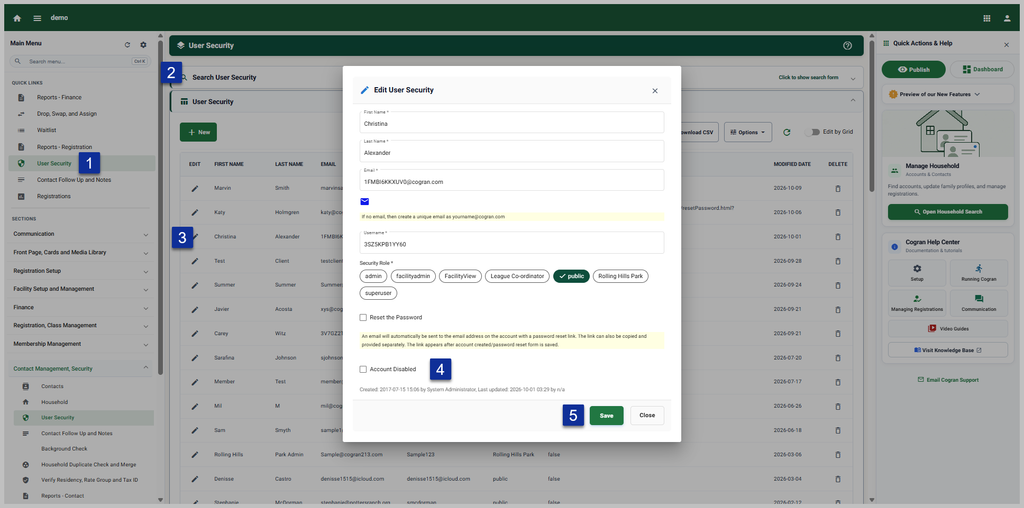
- Open the person’s Security Role settings (Contact Management> Security>User Security>Search for the customer).
- Check the box labeled Account Disabled.
- Save your changes.
The account is now disabled.
Tip:
This action can be temporary. To reactivate the account later, simply uncheck the Account Disabled box and save.
Next Steps:
Customers will be see this message if they try to complete a registration. They will still be able to log in, view their past transactions, reprint invoices, and more.
Updated 10/9/2026