How to Add and Assign Documents to Facilities
Document upload and download is a handy feature of Cogran Facility Management. Customers can fill out PDFs and upload them back into Cogran.
Step One: Upload the Document
- Load Cogran Office and navigate to:
- Left menu: Front Page, Cards, and Media Library > Media Library
- Click Add. A modal appears. Fill out the form:
- Choose a media type: Document
- Enter an Image Name–this will be used internally to organize, not exposed to the public
- Skip the field for alternative text–this is not needed as there is no image that will display to e-readers.
- Upload your PDF
- Save
TIP: If you simply need an upload, not a download, use a placeholder image or form to set up this option. Cogran does require a file to activate the module.
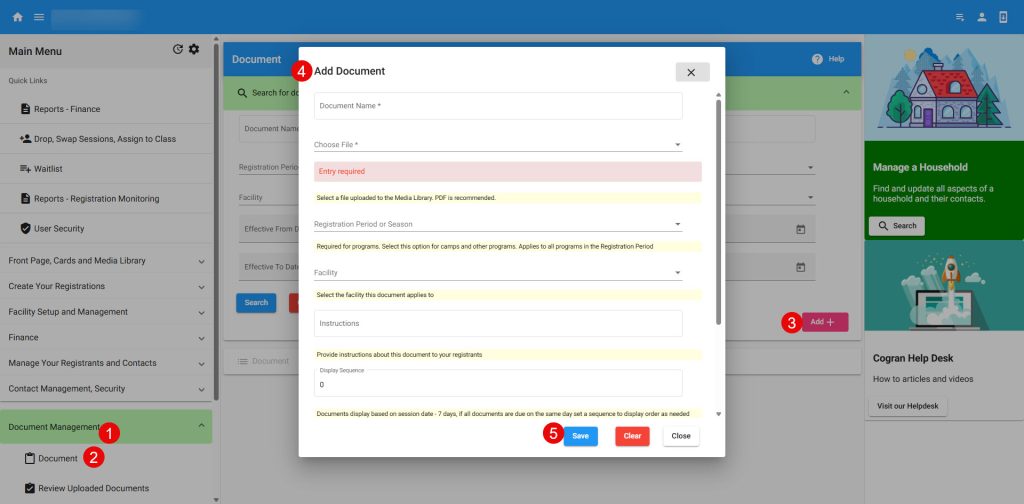
Step 2: Assign the Document
- Navigate to left menu: Document Management>Document
- A modal appears. Click “Add”
- A form appears. Fill out the form:
- Document name–this will appear to the cusomter
- Select the document from the list
- Enter BRIEF instructions.
- Select a Facility
- Enter an effective date for this document (when does this document take effect)
- Enter an effective TO date (how long will this document be in effect)
To enter multiple documents, repeat.
ALTERNATIVES or IN ADDITION TO:
- Add links to the email confirmation template for “Facility Confirmation”
- Add links to the More Info of each Facility under Program Set up.