Conditional fields allow customers to view fields upon check of a Question field.
To use conditional fields on the registration forms, set these rules:
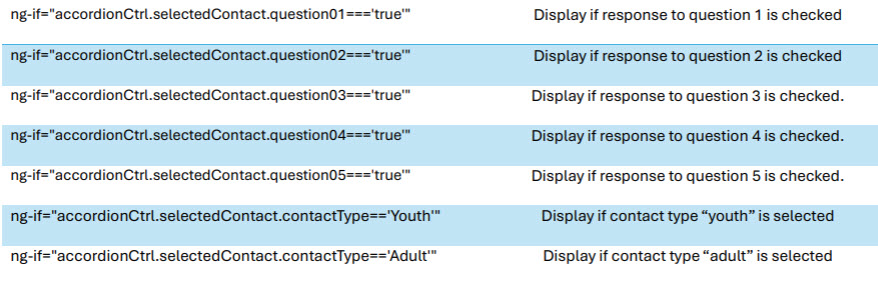
Be sure to match syntax. The capitalization is particularly important.
To use:
On the registration form setup, select a Question field. (Five are available).
By default, Questions are set to function with a checkbox. To activate the conditional formatting, this question should be updated to have a yes/no answer. Note that no other answer will function with the conditional formatting. Set the field to be visible, and it is also recommended to make it required.
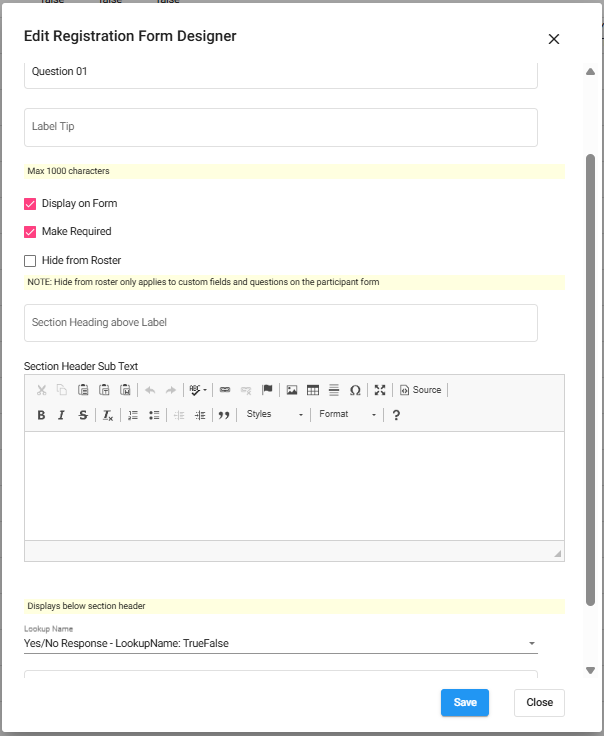
Now, select the field that will appear when “yes” is selected.
For example, choose Custom 04. Click the pencil next to Custom 04.
Check display on form and make required.
Scroll down enter the Conditional Display code. If using Question 01, as in the example above, paste in the code that references question01.
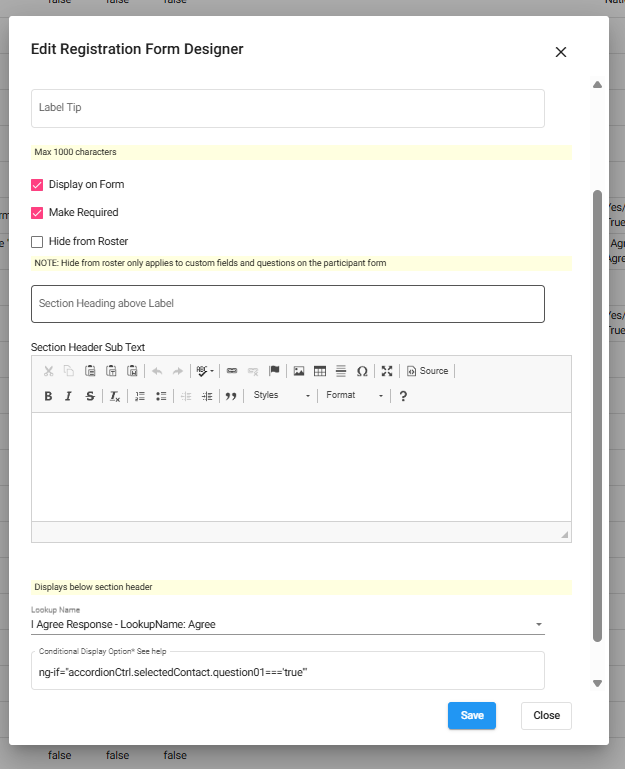
Be sure to save!
Note that using the same conditional code a number of times is perfectly fine.
Updated 2/12/2026