Updated 4/1/2024
Customers who have not paid for their payment-pending programs may be removed from the status “registered” and the payments due can be cancelled.
How to Identify These Customers:
- Back Office
- Visit Finance>Finance ReportsPayment Transaction Detail: Search under the Transaction Type DUE
- View the list that appears
- These are the due customers
How to Drop Customers with Due Status:
- Log into the Back Office
- Household Search (In the right menu, click search under the header Manage a Household)
- Then, search on last name
- The full family will appear
- Click on the go-to menu (three dots)
- Go to payments
- You will see a list of all payments
- Select the relevant payment and click the finger “go to” icon
- The payment detail is shown
- Click the pencil next to the PAYMENT line item
- To cancel, change the transaction type to “cancel” a
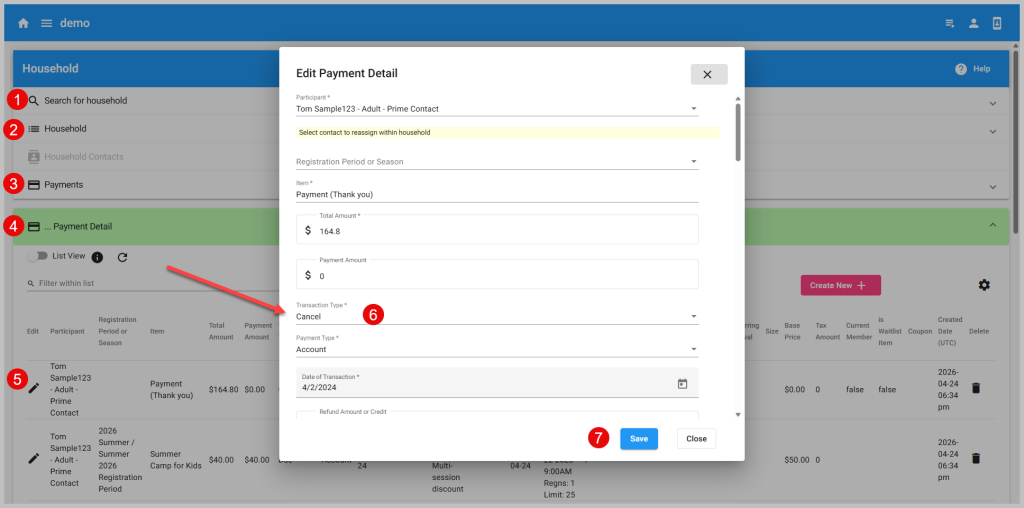
Step 2:
To drop the customer from the program follow these steps
- Log into the Back Office
- Household Search (In the right menu, click search under the header Manage a Household)
- Then, search on last name
- The full family will appear
- Click on the go-to menu (three dots)
- Select Registrations
- Swap to grid view for faster updates
- Next to the registrations to cancel, enter a drop date
This both cancels the due transaction and the registrations!