Menucogran logocogran logo
  • Getting Started
    • Getting Started
  • Front Page
    • Front Page and Cards
    • Cards
    • Media Library
    • Registration Forms
  • Setup
    • Registration Setup
    • Registration Periods and Sessions
    • Create a Membership
    • Create a Program
    • Create a Day Pass
    • Create a Store
    • Document Management
    • Eligibility and Capacity
    • POS features
    • Registration Options: Create and Manage
  • Facility
    • Facility Setup
    • Facility Reservations
    • Facility Requests
    • Facility Reports
  • Finance
    • Credit Card Processing
    • Discounts, Coupons, and more
    • Finance Reports
    • Payment Management
    • Refunds and Cancellations
  • Membership
  • Running Cogran
    • Attendance
    • Changing Registrations
    • Class Management
    • Document Management
    • Helping Your Registrants
    • Notes
    • Registration Monitoring
  • Administration
    • Administration
    • Communications
    • Front Page Admin
    • Reports
    • Security
    • Troubleshooting
    • User/Household Accounts
    • Waitlist Management
  • Sports
  • Videos
  • Getting Started
    • Getting Started
  • Front Page
    • Front Page and Cards
    • Cards
    • Media Library
    • Registration Forms
  • Setup
    • Registration Setup
    • Registration Periods and Sessions
    • Create a Membership
    • Create a Program
    • Create a Day Pass
    • Create a Store
    • Document Management
    • Eligibility and Capacity
    • POS features
    • Registration Options: Create and Manage
  • Facility
    • Facility Setup
    • Facility Reservations
    • Facility Requests
    • Facility Reports
  • Finance
    • Credit Card Processing
    • Discounts, Coupons, and more
    • Finance Reports
    • Payment Management
    • Refunds and Cancellations
  • Membership
  • Running Cogran
    • Attendance
    • Changing Registrations
    • Class Management
    • Document Management
    • Helping Your Registrants
    • Notes
    • Registration Monitoring
  • Administration
    • Administration
    • Communications
    • Front Page Admin
    • Reports
    • Security
    • Troubleshooting
    • User/Household Accounts
    • Waitlist Management
  • Sports
  • Videos

Add or Update a Security Role

Security

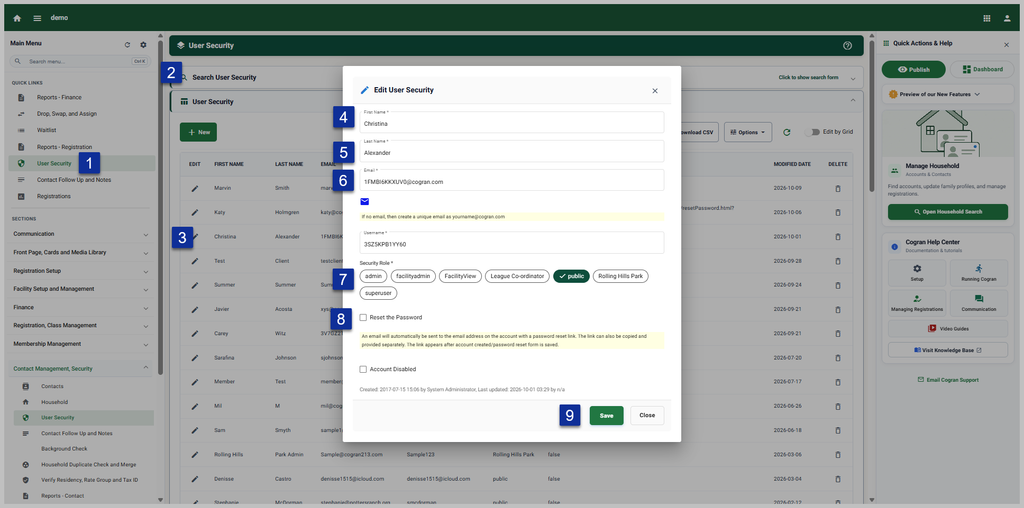
Create a User in Cogran from the Back Office

  1. Sign in as admin to Back Office
  2. Contacts>User Security
  3. Search.
    1. click add to create a new account or
    2. search for an existing login to turn it into an admin account.
  4. A form appears. Fill out the form with first name, last name, and email address. The email must be unique.
  5. Select “admin” for the access level. (Or any other access level that is desired).
  6. Check “reset the password.” Save.
  7. When your new admin logs in, they will be prompted to update their password.
  8. Refresh the list using the refresh button on the list. A Reset Password Link will appear.

TIP: The email address must be unique. If changing a public account to admin, pull up the public account and change the access level from public to admin. Two logins with the same email address will create issues as the system tries to apply dual security roles.

Update a User’s Security Role

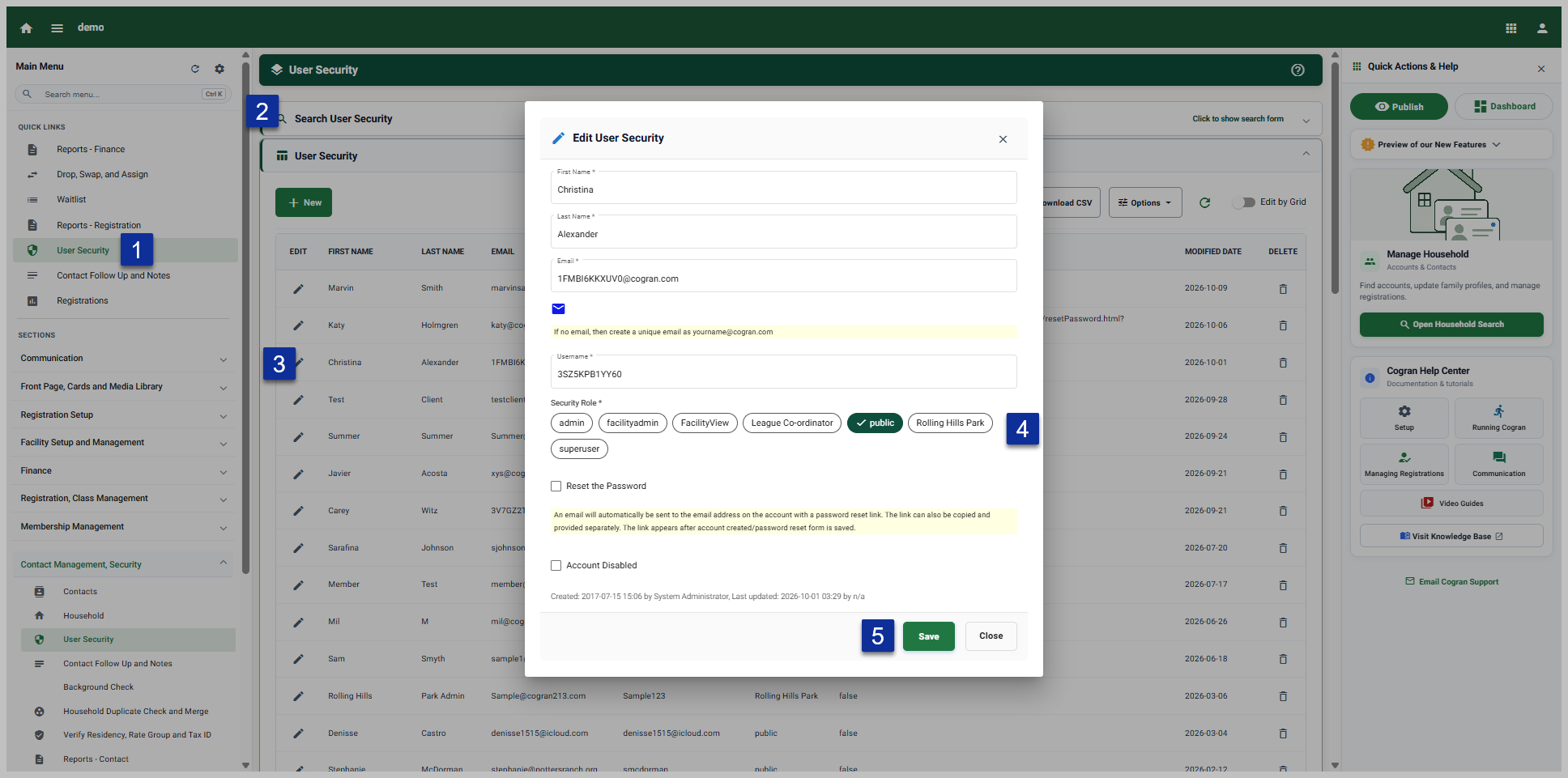
  • Sign in as admin to Back Office
  • Select User Security from Quicklinks or Contacts>User Security
  • Search for contact
  • Click the pencil next to your contact’s name.
  • Select a secuirty role from the options.
  • Save
  • The user may now log in with their existing username/password, but they will now have the appropriate access.

If creating the account, continue to follow these instructions:

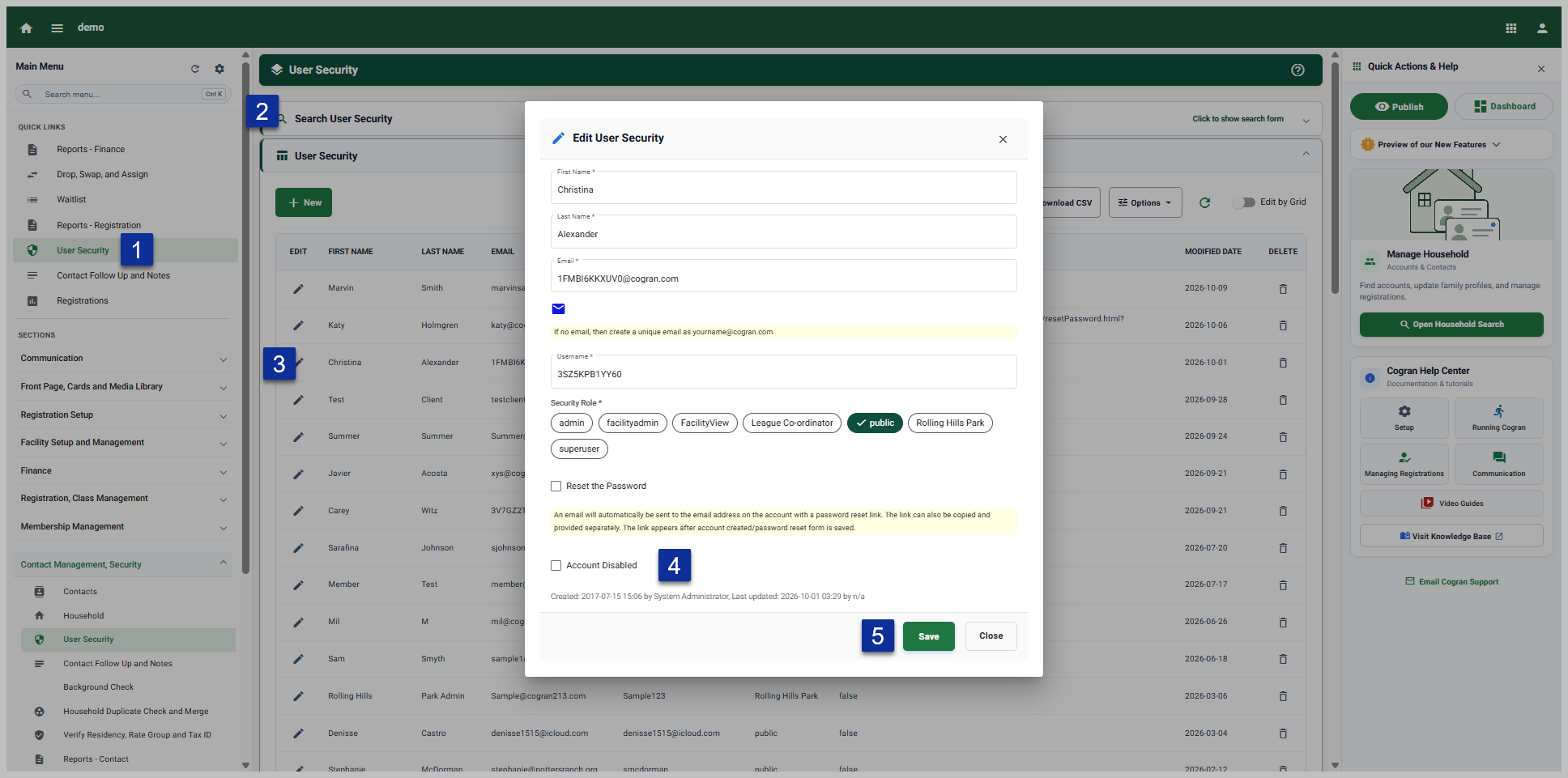
Reset a Password:

  • Check the box “Reset the Password.”
  • Save

Automated Action 1: An email will automatically be sent to the customer with a link to the password

Automated Action 2: When the user next logs into the account, they will be automatically propelled through the password recovery tool. This ensures admins do not know user passwords.
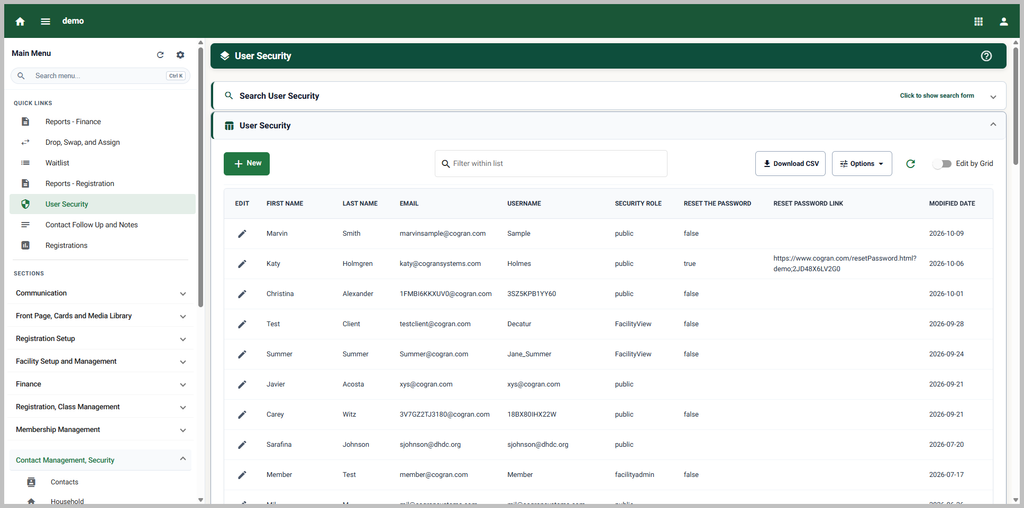
Additional Option:

  • Refresh the screen
  • Copy the unique link into your browser
  • Update the password and supply the new password to your contact.
  • Fill in the blanks to update the password.
Updated 10.6.2026

Tags:admin accessadmin logincreate a new adminstaff login

Explore Helpdesk Categories

Recent Posts

  • Reminders: Automated
  • Membership Dashboard
  • Facility Dashboards
  • Cogran’s November 2026 Release
  • Add or Update a Security Role
About Cogran

Cogran is a flexible, powerful registration management software that is designed for organizations big and small.

Categories

  • Administration
  • Attendance
  • Changing Registrations
  • Classes, Cabins, and Groups
  • Communications
  • Create a Day Pass
  • Create a Membership
  • Create a Program
  • Create a Registration Option
  • Credit Cards and Stripe
  • Discounts, Coupons, and More
  • Document Management
  • Facility Reports
  • Facility Request Management
  • Facility Request Setup
  • Facility Reservations
  • Facility Setup
  • Front Page Admin
  • Front Page and Cards
  • Getting Started
  • Helping Your Registrants
  • Household Management
  • Manage a Membership
  • Media Library
  • Point of Sale
  • Registration Form and Forms
  • Registration Management
  • Registration Options
  • Registration Periods (Seasons)
  • Registration Setup
  • Reports
  • Security Accounts and Passwords
  • Sports League Formation
  • Sports League Management
  • Sports League Schedules
  • System Settings
  • Tips and Troubleshooting
  • Videos
  • Administration
  • Getting Started
  • Registration Management
  • Videos
  • Copyright 2026 Cogran Systems LLC All Rights Reserved.