How to Use Your Cogran System
Thank you for choosing Cogran as your registration management system! Cogran will streamline your back office, handle your registrations, and manage your communications. The first step is taking some time to set up your system and make it your own. To begin to customize your setup, follow these steps:
Read your setup email (if this has not yet arrived, don’t worry! It’s coming soon). This email includes your site address and your login information. The setup email contains links to your Front Page and the Back Office
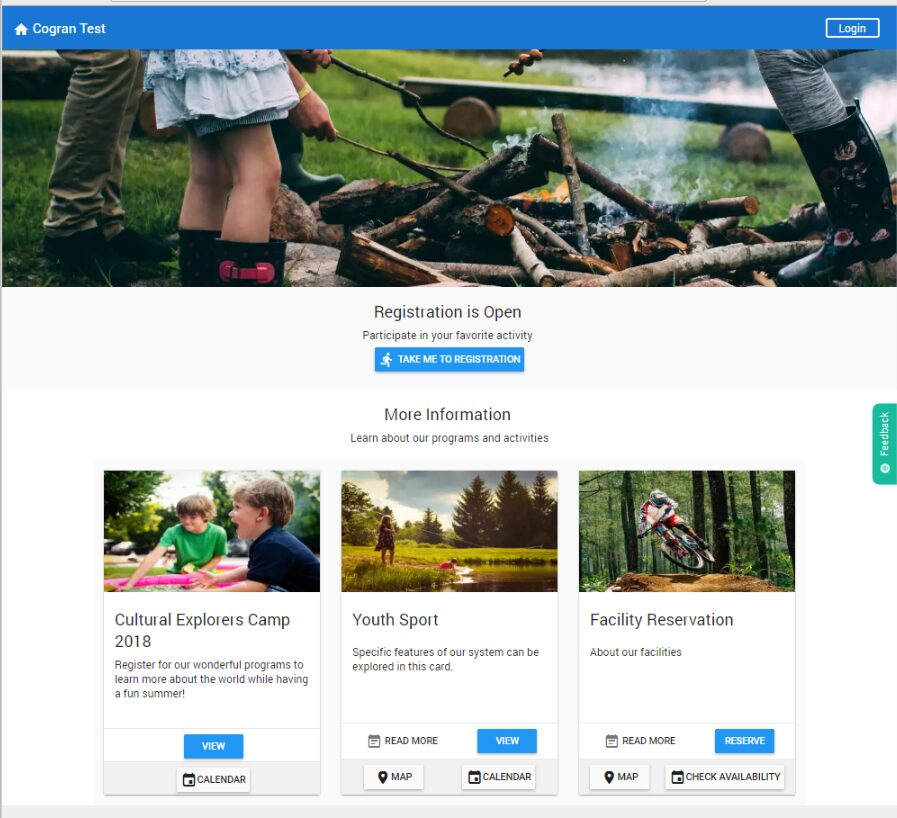
The Front Page
The Front Page displays your listings, calendars, and more.
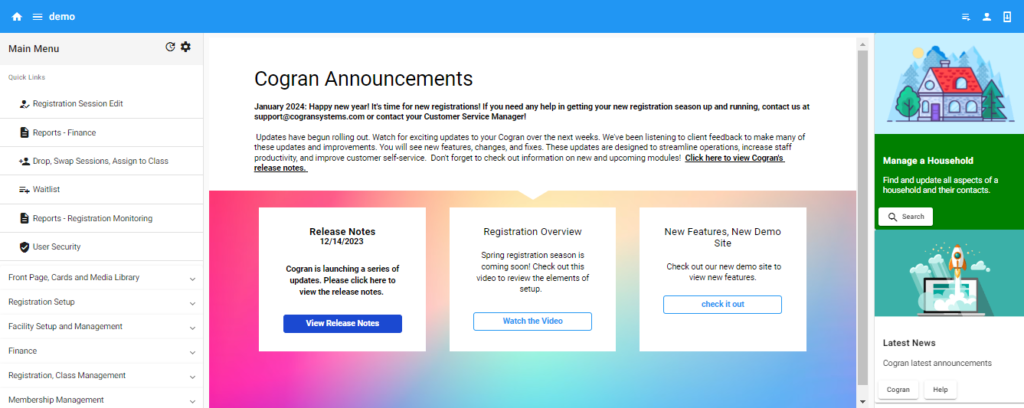
The Back Office
The Back Office is where you will set up your system
Let’s Explore!
Getting Started
-
- Get the Basics:
- Cogran Front Page and Cards Setup: Create or edit your Cogran Front Page.
-
- The Front Page is a customer-facing website that displays product listings, company information, includes a shopping cart, and allows calendar-based program and facility selection. The Front Page can be personalized with images, information, and cards. The Front Page should be set up early in the onboarding process, but it can be changed and updated at any time.
- Read about Front Page setup here
- Read about Cards here
- Watch a video about creating cards
- Watch a video about how cards dovetail with registration styles
- Update your organization details
-
- Registration Form:
-
- Update your registration form! Click here.
-
- Registration Setup Overview:
-
- How does it work? Click to read a valuable overview of Cogran Registration Setup
- Registration Overview: Watch a video
-
- Registration Option Setup – Info/Pricing/Restrictions: Set up your registration options or facilities
-
- In Cogran, registration options (such as programs, facilities, tickets, and point of sale items) include name, image, card choice, prices and discount, and eligibility. Program pricing can be impacted by quantity and household discounts, resident, or installments. Registration Options may include questions, which gather program-specific information.
- Registration Option Overview
- Read more here
-
- Registration Setup by Period/Season: Set up your registration season with dates, then add sessions!
-
- Read more here
-
- Publish Updates to Front Page: Use this feature to display your changes. Caching prevents changes from disrupting a user experience. Read instructions here.
- Preview: Review your Setup
-
- Click the link to your Front Page. Click through your pages and review your registration.
-
A few tips as you get started:
Only open Cogran in one tab at a time
-
- Log in each time you visit and log out when you are done
- Remember to use the precise URL each time.
Enjoy! Remember, if you get stuck, reach out to your Cogran Registration Management Specialist!
Watch this video for an overview of how to update a registration form!
Cogran has translation built right in!
Product Specifications for Cogran In-Person Review these product specifications to ensure that payment terminals, scanners,...
Thank you for choosing Cogran! This short video provides an overview of the first information...
New to setting up a Cogran registration? Review this video for a general overview of...
At the heart of a registration system is the all-important registration form! These instructions are...
Navigating Cogran is easy once you learn it!
Add links to Cogran from your Front Page, a mailing campaign, and more.
An overview of sessions, programs, and registration periods: how they work together when setting up...
Want a Cogran app? Here's how to create a hotlink to your Cogran site for...
Getting Started with a New Registration System in Cogran 2020.
Are you ready to go live? Congratulations! Before you do, we recommend running through a...
Link your Stripe account to Cogran so that you can accept online payments. Connect your...